

Introduction
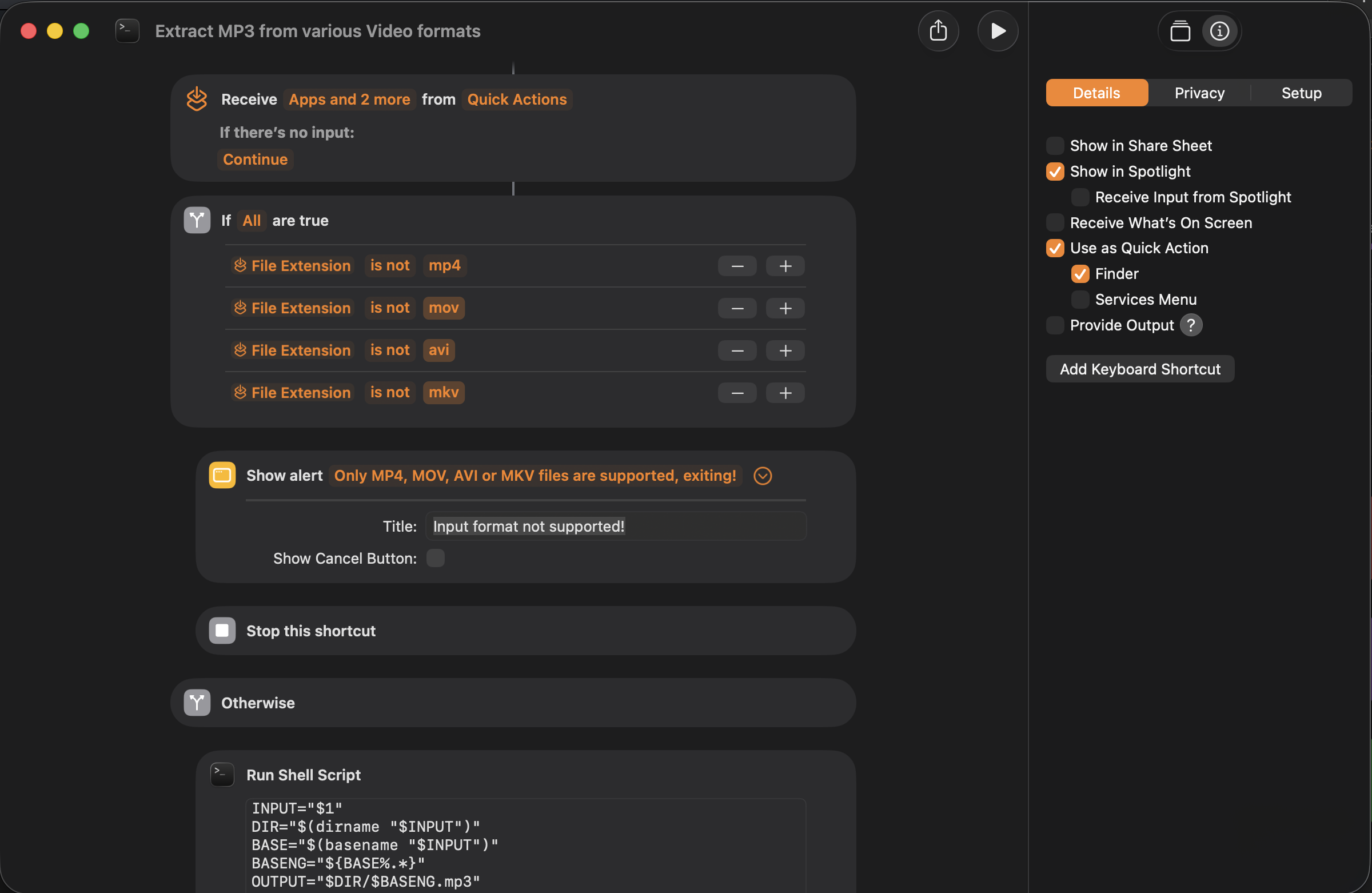 Extract audio from movie (mp4, avi, mov, mkv) file and save as mp3 file - Shortcut Setup
This macOS shortcut lets you instantly extract the audio track from any selected .mp4 movie file directly from Finder. Once triggered as a Quick Action, it takes the file you selected, converts the audio to MP3 using a built‑in shell workflow, and saves the result with the same filename but an .mp3 extension. No file pickers, no extra clicks — just a fast, reliable way to turn video files into standalone audio.
How to install and use
Installation (without editing)
Installation is easy. Just browse to the Extract MP3 from various Video formats.shortcut file and doubleclick it - and done. You should have now a new “Quick action” Item in the context menu in the finder app when doing a right click on the selection.
Shell script
The following shell script (used by a “Run shell script” action in the shortcut workflow) does most of the work of this macOS shortcut. You can also save it as a “*.sh” file and use it as standalone script from CLI or wherever you please as well.
1
2
3
4
5
6
7
8
INPUT="$1"
DIR="$(dirname "$INPUT")"
BASE="$(basename "$INPUT")"
BASENG="${BASE%.*}"
OUTPUT="$DIR/$BASENG.mp3"

# Convert using ffmpeg
ffmpeg -y -i "$INPUT" -vn -acodec libmp3lame "$OUTPUT"
Dependencies
- ffmpeg (install with homebrew)
Github repository
License
Credits
This macOS shortcuts was made with the help of Microsoft Copilot AI app and some elbow grease