

AudioExtractor for macOS (Beta version)
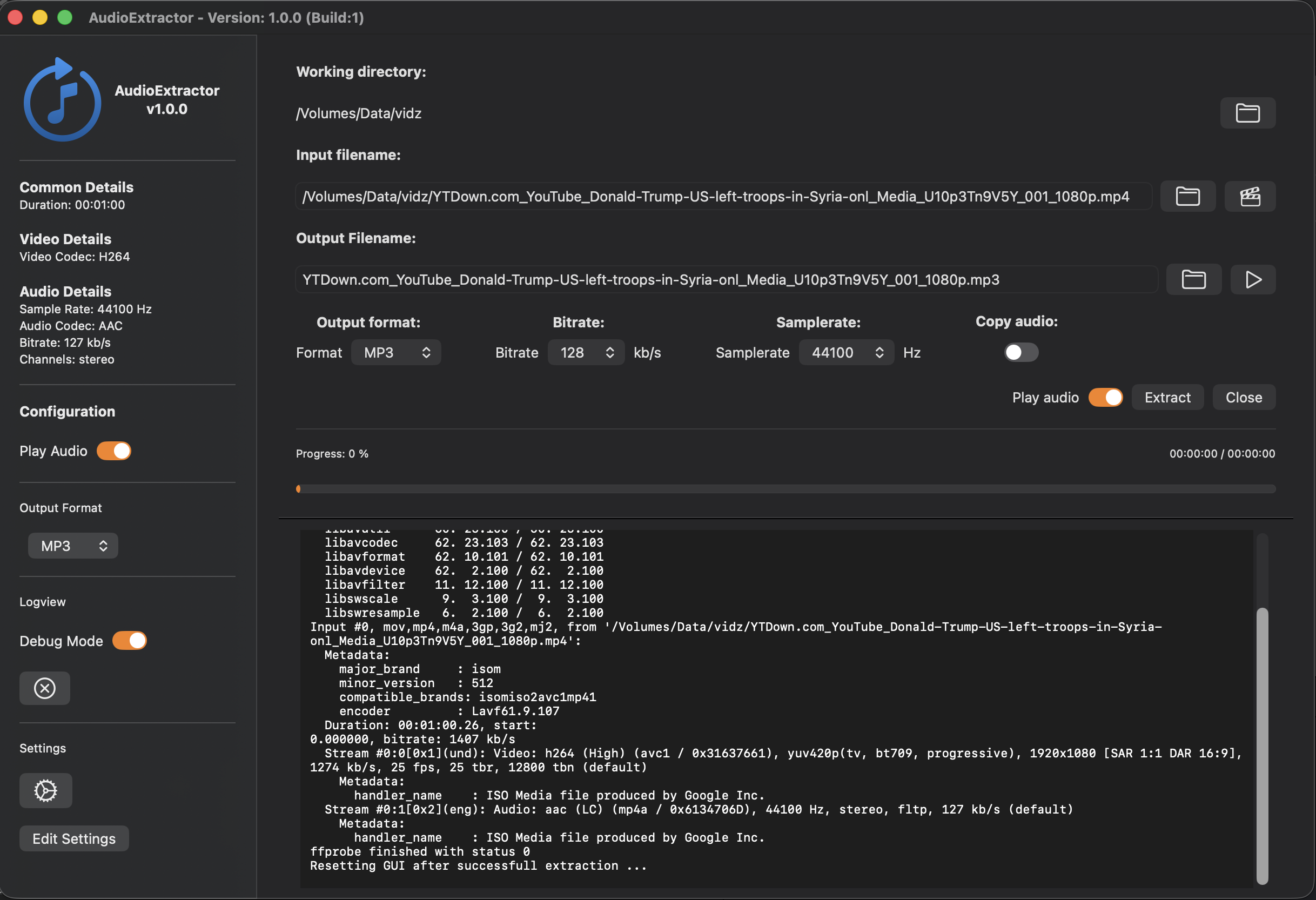 Extract audio (mp3, wav, flac, ogg, m4a, …) from movie (mp4, avi, mov, mkv, …) file and save as mp3 file - Shortcut Setup
Extract audio from any video using a Finder Quick Action and a SwiftUI desktop app.
This is a beta version so please give me your feedback. I’m very happy to take any input for what could be ammended or needs to be refined!
AudioExtractor is a macOS utility designed to make audio extraction from video files effortless, fast, and fully integrated into the operating system. Instead of opening a dedicated app, navigating file pickers, or typing ffmpeg commands, you simply right‑click any video file in Finder and choose Extract Audio. The main SwiftUI app launches automatically, processes the file, and outputs clean audio in your preferred format.
The project demonstrates how to combine modern SwiftUI architecture with macOS system extensions, custom URL schemes, and a robust ffmpeg pipeline. It is built to feel like a native macOS feature rather than a standalone tool.
🎬 Project Goals
AudioExtractor was created with several goals in mind:
- Provide a system‑wide, context‑menu‑based workflow for extracting audio.
- Use a SwiftUI app for a clean, modern macOS interface.
- Integrate ffmpeg without sandbox restrictions.
- Support all movie formats Finder can handle.
- Work across all volumes (internal, external, network).
- Avoid the limitations of Finder Sync Extensions.
- Provide a reliable, extensible architecture for future enhancements.
The result is a tool that blends seamlessly into macOS and behaves like a built‑in utility.
🧩 High‑Level Architecture
AudioExtractor consists of two cooperating components:
Finder Quick Action Extension
A macOS extension that appears in Finder’s right‑click menu for movie files. Its responsibilities:
- Detect when the user selects a video file.
- Resolve the file URL from Finder’s NSItemProvider.
- Launch the main app using a custom URL scheme.
- Pass the selected file path as a parameter.
This extension is lightweight and contains no ffmpeg logic.
SwiftUI Main App
A full macOS app that:
- Receives the file URL via `.onOpenRL.
- Displays the file in the UI.
- Runs ffmpeg to extract audio.
- Shows logs, progress, and status.
- Allows cancellation.
- Stores user preferences.
The app is not sandboxed, allowing it to run ffmpeg freely.
Communication Between Components
The Quick Action launches the main app using a custom URL:
1
audioextractor://process?file=/path/to/movie.mp4
The main app parses this URL and begins processing. This architecture avoids the limitations of Finder Sync Extensions, which cannot operate globally across all folders or volumes.
⚙️ Finder Quick Action Implementation
Why a Quick Action Instead of a Finder Sync Extension?
Finder Sync Extensions require you to specify observed directories, and the menu item only appears inside those directories. They cannot:
- Observe the entire filesystem
- Observe external drives
- Observe network volumes
- Provide global context menu items
Quick Actions, however:
- Work everywhere
- Support all file types
- Are simple to implement
- Integrate cleanly with SwiftUI apps
This makes them ideal for system‑wide utilities like AudioExtractor.
Activation Rule
The Quick Action is configured to appear for all movie files:
1
2
3
4
5
<key>NSExtensionActivationRule</key>
<dict>
    <key>NSExtensionActivationSupportsMovieFiles</key>
    <true/>
</dict>
This includes:
- MP4
- MOV
- MKV
- AVI
- M4V
- WebM
- And any other UTType conforming to public.movie
Robust File Loading
Finder may provide the selected file in several different representations:
- `public.fileurl
- `public.url
- `public.movie
- `com.apple.quickime-movie
- `publicmpeg-4
- `com.appleprivate.ex-sandboxed-resource
A robust loader is required to handle all of them. The extension includes a universal resolver that:
- Checks for each supported type
- Loads the item
- Extracts the underlying file URL
- Falls back to sandboxed resource wrappers when necessary
This ensures compatibility across all volumes and file types.
Launching the Main App
Once the file URL is resolved, the extension constructs a custom URL:
1
2
let urlString = "audioextractor://process?file=\(encodedPath)"
NSWorkspace.shared.open(URL(string: urlString)!)
macOS then launches the main app (or brings it to the foreground) and passes the URL to it.
🖥️ SwiftUI Main App
URL Scheme Registration The main app registers the custom URL scheme in its Info.plist:
1
2
3
4
5
6
7
8
9
10
11
12
<key>CFBundleURLTypes</key>
<array>
    <dict>
        <key>CFBundleURLName</key>
        <string>AudioExtractor</string>
        <key>CFBundleURLSchemes</key>
        <array>
            <string>audioextractor</string>
        </array>
    </dict>
</array>
This allows macOS to route URLs like:
1
audioextractor://process?file=/path/to/movie.mp4
directly to the app.
URL Handling in SwiftUI
The app listens for incoming URLs:
1
2
3
4
5
6
.onOpenURL { url in
    if url.host == "process",
       let file = url.queryParameters["file"] {
        vm.processFile(URL(fileURLWithPath: file))
    }
}
This triggers the ffmpeg pipeline.
ffmpeg Integration
The app uses `rocess to run ffmpeg:
- Launches ffmpeg with the selected file
- Captures stdout and stderr
- Updates the UI in real time
- Supports cancellation
Handles errors gracefully
Because the app is not sandboxed, ffmpeg can run without entitlements or restrictions.
UI Features
The SwiftUI interface includes: -
- Drag‑and‑drop support
- File preview
- Format selection (MP3, AAC, WAV, FLAC, etc.)
- Real‑time logs
- Progress indicators
- Cancel button
- Settings panel with switches and toggles
The UI is designed to be minimal, responsive, and macOS‑native.
🎨 Quick Action Icon Setup
Why .icns Is Not Used Finder Quick Actions do not use `.ics files.
*.icns is only for:
- App icons
- Document icons
- Bundle icons
Quick Actions use template images stored in the extension’s asset catalog.
Correct Icon Setup
- Add a PDF vector to the extension’s `Assets.xcassets
- Name it QuickActionIcon.
- Set Render As → Template Image.
- Reference it in the extension’s Info.plist:
1
2
<key>NSExtensionServiceIconFile</key>
<string>QuickActionIcon</string>
Finder automatically:
- Tints the icon
- Scales it correctly
- Renders it crisply
Even if the PDF is large, Finder uses the vector to draw it at the correct size.
Designing the Icon
For best results:
- Use a 32×32 pt artboard.
- Use a single‑color glyph (black).
- Keep the glyph smaller inside the canvas.
- Use a transparent background.
- Export as PDF vector.
This produces a clean, native‑looking Finder icon.
📦 Project Structure
1
2
3
4
5
6
7
8
9
10
11
12
13
14
15
16
17
AudioExtractor/
│
├── AudioExtractor/          # SwiftUI main app
│   ├── ContentView.swift
│   ├── MovieViewModel.swift
│   ├── MovieLogViewModel.swift
│   ├── SettingsView.swift
│   ├── URLHandler.swift
│   └── Assets.xcassets
│   └── ...
│
└── AudioExtractorAction/    # Finder Quick Action (extension) / Finder Context menu item
    ├── ActionViewController.swift
    ├── Info.plist
    └── Assets.xcassets
    └── ...
This separation keeps the extension lightweight and the main app fully featured.
🚀 Usage
- Build and run the main app once to register the URL scheme.
- Enable the Quick Action in: System Settings → Privacy & Security → Extensions → Finder
- Right‑click any movie file in Finder.
- Choose Quick Actions → Extract Audio.
- The main app opens and begins extraction.
- View logs, progress, and output in the SwiftUI interface.
🛠️ Supported Formats
The app supports any format ffmpeg can decode, including:
- MP4
- MOV
- MKV
- AVI
- M4V
- WebM
- ProRes
- HEVC
- H.264
Output formats depend on your ffmpeg arguments and may include:
- MP3
- AAC
- WAV
- FLAC
- OGG
- AIFF
The pipeline is fully customizable.
🔧 Extensibility
AudioExtractor is designed to be extended. Possible enhancements include:
- Batch processing of multiple files
- Custom output directory selection
- Presets for podcasting, music extraction, or voice isolation
- Integration with Shortcuts
- Automatic naming conventions
- Background processing
- Notifications when extraction completes
The architecture supports all of these without major changes.
📚 Summary
AudioExtractor provides a fast, native macOS workflow for extracting audio from video files using:
- A global Finder Quick Action
- A SwiftUI desktop app
- A robust ffmpeg pipeline
- A custom URL scheme for communication
- A template PDF icon for Finder integration
It is designed to feel like a built‑in macOS feature: simple, fast, and always available where you need it—right in Finder.
Alternative macOS Shortcut
What is the Shortcuts App / are Shortcuts on macOS
The Shortcuts app on macOS is Apple’s system‑level automation environment. It gives users a way to build custom actions, workflows, and automations by combining small, modular building blocks called actions. These actions can interact with apps, files, system features, web services, and even third‑party tools. The goal is to let anyone—from casual users to power users—automate repetitive tasks without writing code, while still offering enough depth for complex workflows.
Extract audio from video Shortcut
As an alternative I also created a macOS Shortcut that works pretty similar by using ffmpeg for extracting audio from video files on macOS from Finder via Context Menu.
Even though it produces the same audio output because it uses the same ffmpeg executables, its configuration and settings are limited campared to the AudioExtractor App. But if you are looking for a quick and simple way to extract audio from video with a macOS Finder-Extension, it’s worth to look at. It’s up to your needs and preferences. Check it out here:
- Extract audio from various video formats into various audio formats - macOS Shortcut (github repo)
Download Source code / github repo
Credits
- ffmpeg.org
- Copilot
- Google.com