

OpenVoice V2 tutorial (Docker version, macOS)
Introduction
This is a documentation about my endeavour setting up OpenVoice on macOS Tahoe in a free way for cloning (my own) voice and using it for text to speech. At the beginning it might seem a little confusing and overwhelming, but once you got it all set up and understood the process, it’s pretty simple and straight forward.
As a part of this tutorial, I tried to list all the needed resources for setting up OpenVoice on macOS. I also published some python scripts you can use as a startpoint for cloning and using your own voice for text to speech on macOS.
Prerequisites on macOS Tahoe
The following - all free - tools and apps are required to get started with this OpenVoice TTS tutorial. Please make sure you have them set up correctly before you begin the main task of cloning your own voice and using it as a source for text‑to‑speech.
Required Apps and Tools
- Homebrew
- Git CLI (and GitHub Desktop)
- Python 3.10 recommended (>= 3.9)
- Docker CLI (Via Homebrew - brew install docker)
- Docker-Desktop
- VSCode (Also install python extensions)
- Anaconda Python (optional)
Required Sources and Libraries
- myshell-openvoice-docker (git repo)
- OpenVoice (git repo)
- OpenVoice checkpoints V2 (only for Version 2 TTS)
- OpenVoice checkpoints V1 (optional for Version 1 TTS)
- MeloTTS (git repo)
Useful Python scripts and files


Docker Desktop for macOS
On macOS, the Docker daemon only runs inside Docker Desktop. You’ll need to download and install Docker Desktop for macOS.
OpenVoice Docker version
To avoid issues with Python versions and dependency conflicts on macOS, I’d recommend using the Docker image of OpenVoice. It’s a truly encapsulated and ready‑made version of OpenVoice (V1 and V2). Even with Python virtual environments, I ran into problems when trying to set up OpenVoice on macOS Tahoe, so I eventually switched to the Docker version. For me, it was the final approach that worked flawlessly — after multiple attempts to set up OpenVoice manually.
- Docker-Desktop
- OpenVoice Docker-Image on GitHub - https://github.com/manzolo/myshell-openvoice-docker
Build Docker image
Navigate to the local folder with the cloned git repo of “myshell-openvoice-docker” and build the openvoice Docker image with the following terminal command:
1
dave@Ava myshell-openvoice-docker % docker build -t myshell-openvoice .
Create docker container in CLI (on host, macOS)
Open a Terminal session and navigate to the OpenVoice repo folder you cloned (make sure, that you extracted checkpoints_V2 into it) and execute the following command.
1
2
3
4
5
dave@Ava OpenVoice % docker run -it \
  --name openvoice \
  -v "$(pwd)":/workspace \
  myshell-openvoice \
  bash
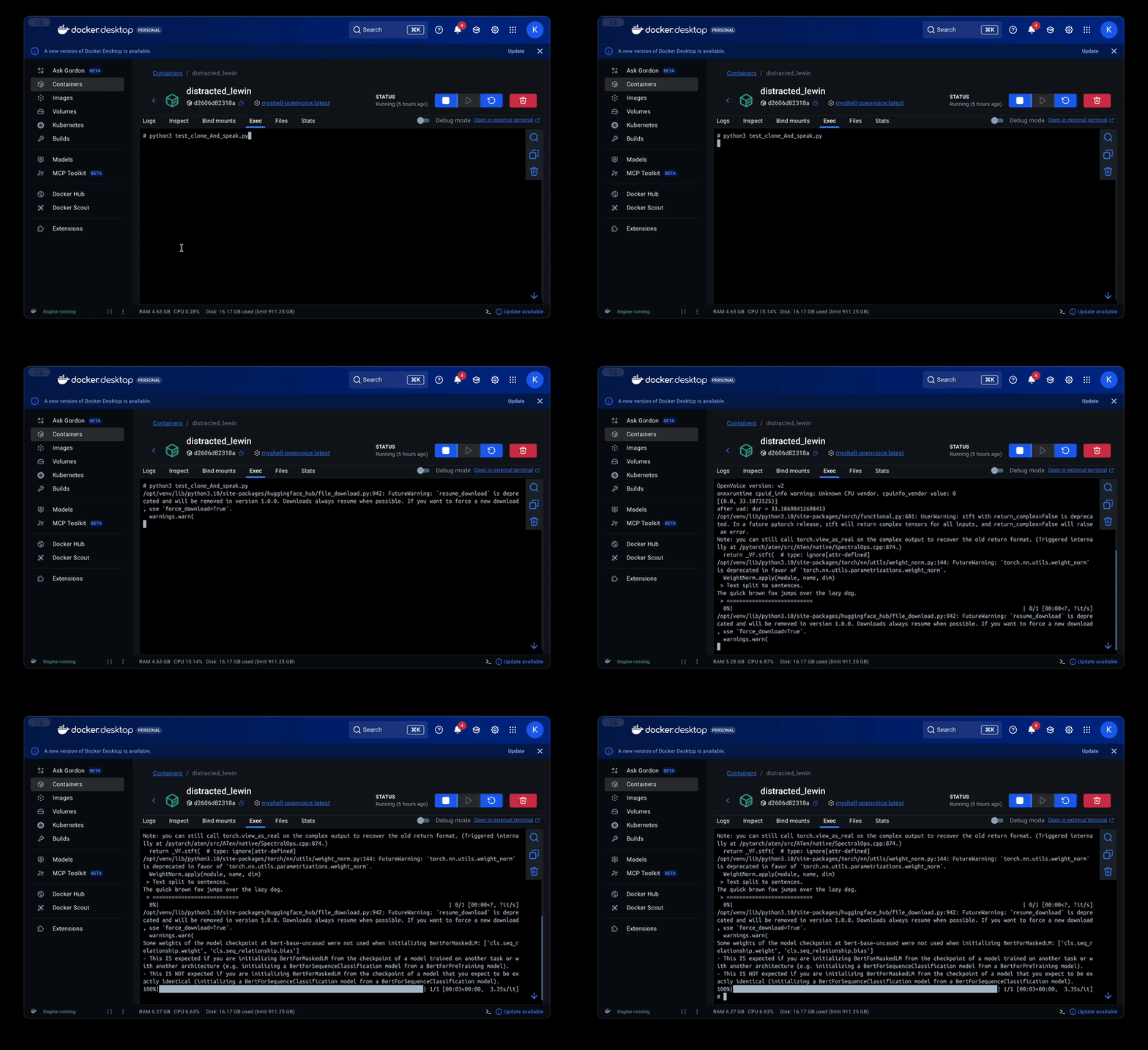
This mounts the OpenVoice folder in the Docker Container as “/workspace” (Set’s it initially at container creation - used as default later on) where you can access it from whitin the Terminal in the Docker-Desktop app. For that open Docker-Desktop app and goto “Containers” in the sidebar menu. Now select the container you started in CLI and select “Open in Terminal” in the “Actions” menu of the container (Three dots). Now you can run the scripts with python.
Create docker container - Option 2 “remove at close”
IMPORTANT: if you specify the “–rm” argument when running the docker container, docker will remove / delete the container when you stop it - and you have to set it up from the image again next you want to run it. Keep that in mind! See the following command for automatically deleting the container when you stop it:
1
2
3
4
5
dave@Ava OpenVoice % docker run -it --rm \
  --name openvoice \
  -v "$(pwd)":/workspace \
  myshell-openvoice \
  bash
Now you can run your python scripts inside the docker container terminal session (or host terminal console session) to automate the voice cloning and audio from text generation process. I.e. with the following call to the ready made python script you can download below.
Install MeloTTS and Unidic
Before you can run any of my cloning-scripts or creating a TTS model in your own python scripts, install MeloTTS and Unidic with the following command in the Docker terminal console:
1
2
root@fe57531ee929:/workspace# pip install git+https://github.com/myshell-ai/MeloTTS.git
root@fe57531ee929:/workspace# python -m unidic download
Run helper scripts for voice cloning
Inside a docker terminal console
1
2
root@fe57531ee929:/workspace# python clone_and_speak.py
# Run this python script inside docker cli (i.e. Docker Desktop Terminal or inside the terminal shell after running / creating the docker container from macos terminal console)
From host terminal console (macOS terminal)
1
2
dave@Ava OpenVoice % docker exec openvoice python /workspace/clone_and_speak_standalone.py --text "Some text to speak" --out /workspace/out.wav
# Run this script inside docker container but start it from host terminal console and pass text and output filename as arguments
NOTE You might get an error, that nltk is not installed. If so, you can use the following python commands to install it directly from within a python script. For your convenience there is also a simple python scipt for installing nltk by including it into your own python scripts. Download below.
1
2
import nltk
nltk.download('averaged_perceptron_tagger_eng')
OpenVoice V2 python scripts
Here are some python scripts / commands I made and want to share with you to clone / reload the own voice and generate a new audio output file using that own voice.
Complete workflow for cloning and speaking text with your own voice - Version 1
After setting up the Docker image correctly, installing all dependencies and starting the container you can run this script in the terminal inside Docker. It is a ready-made complete workflow for using (cloning) a voice sample and speaking a text with this voice. All you need is a sample *.wav (“myvoice.wav”) of the voice you want to use, about 30 sec - 1 min should be enough.
Important Keep in mind, that the better the sample you provide is (no background music, noise, etc.) the better voice cloning you get.
1
2
3
4
5
6
7
8
9
10
11
12
13
14
15
16
17
18
19
20
21
22
23
24
25
26
27
28
29
30
31
32
33
34
35
36
37
38
39
40
41
42
43
44
45
46
47
48
49
50
51
52
53
from openvoice.api import ToneColorConverter
from openvoice import se_extractor
from melo.api import TTS
import numpy as np
import torch
import os

ckpt_converter = 'checkpoints_v2/converter'
device = "cuda:0" if torch.cuda.is_available() else "cpu"
output_dir = 'outputs_v2'
output_tmp = './tmp.wav'
tts_lang = 'EN'
voice_sample = "myvoice.wav"
voice_clone = "myvoice_se.npz"
speaker_key = "EN-Default"

vc_model = ToneColorConverter(f'{ckpt_converter}/config.json', device=device)
vc_model.load_ckpt(f'{ckpt_converter}/checkpoint.pth')

os.makedirs(output_dir, exist_ok=True)

se = se_extractor.get_se(voice_sample, vc_model, vad=True)
tgt_se = se[0]
tgt_tone = se[1]

np.savez(voice_clone, se=tgt_se, tone= tgt_tone)

model = TTS(language=tts_lang, device=device)

speaker_ids = model.hps.data.spk2id
speaker_id = speaker_ids[speaker_key]
speaker_key = speaker_key.lower().replace('_', '-')

source_se = torch.load(f'checkpoints_v2/base_speakers/ses/{speaker_key}.pth', map_location=device)
if torch.backends.mps.is_available():
    torch.backends.mps.is_available = lambda: False

# Uncomment this to load cloned voice from save-file
# data = np.load(voice_clone)
# tgt_se = torch.tensor(data["se"]).float()
# tgt_tone = data["tone"]

model.tts_to_file("The quick brown fox jumps over the lazy dog. This audio was created using the complete workflow. With cloning the sample voice and then using it to speak the text.", speaker_id, output_tmp, speed=0.9)

save_path = f'outputs_v2/output_v2_{speaker_key}.wav'

vc_model.convert(
            audio_src_path = output_tmp,
            src_se = source_se,
            tgt_se = tgt_se,
            output_path = save_path)

print(f'Cloning your voice and using it to text-to-speak finished successfully!\nYou find the audio output at: {save_path}')
Complete workflow for cloning and speaking - Version 2 (As standalone script)
This standalone version of the ready made voice cloning python script is intend for running from the host terminal console with arguments for specifying the spoken text and the output path / filename for the generated audio file. It also downloads the “nltk” tagger in english
1
2
3
4
5
6
7
8
9
10
11
12
13
14
15
16
17
18
19
20
21
22
23
24
25
26
27
28
29
30
31
32
33
34
35
36
37
38
39
40
41
42
43
44
45
46
47
48
49
50
51
52
53
54
55
56
57
58
59
60
61
62
63
64
65
66
67
68
69
70
71
72
73
74
75
76
77
78
79
80
81
82
83
84
85
86
from openvoice.api import ToneColorConverter
from openvoice import se_extractor
from melo.api import TTS
import numpy as np
import torch
import os
import argparse
import nltk

def parse_args():
    parser = argparse.ArgumentParser(description="OpenVoice TTS CLI")

    parser.add_argument(
        "--text",
        type=str,
        required=True,
        help="Text to synthesize"
    )

    parser.add_argument(
        "--out",
        type=str,
        required=True,
        help="Output audio file path"
    )

    return parser.parse_args()


if __name__ == "__main__":
    args = parse_args()

    text = args.text
    out_path = args.out

    print("Text:", text)
    print("Output file:", out_path)

    nltk.download('averaged_perceptron_tagger_eng')

    ckpt_converter = 'checkpoints_v2/converter'
    device = "cuda:0" if torch.cuda.is_available() else "cpu"
    output_dir = 'outputs_v2'
    output_tmp = './tmp.wav'
    tts_lang = 'EN'
    voice_sample = "myvoice.wav"
    voice_clone = "myvoice_se.npz"
    speaker_key = "EN-Default"

    vc_model = ToneColorConverter(f'{ckpt_converter}/config.json', device=device)
    vc_model.load_ckpt(f'{ckpt_converter}/checkpoint.pth')

    os.makedirs(output_dir, exist_ok=True)

    se = se_extractor.get_se(voice_sample, vc_model, vad=True)
    tgt_se = se[0]
    tgt_tone = se[1]

    np.savez(voice_clone, se=tgt_se, tone= tgt_tone)

    model = TTS(language=tts_lang, device=device)

    speaker_ids = model.hps.data.spk2id
    speaker_id = speaker_ids[speaker_key]
    speaker_key = speaker_key.lower().replace('_', '-')

    source_se = torch.load(f'checkpoints_v2/base_speakers/ses/{speaker_key}.pth', map_location=device)
    if torch.backends.mps.is_available():
        torch.backends.mps.is_available = lambda: False

    # Uncomment this to load cloned voice from save-file
    # data = np.load(voice_clone)
    # tgt_se = torch.tensor(data["se"]).float()
    # tgt_tone = data["tone"]

    model.tts_to_file(text, speaker_id, output_tmp, speed=0.9)

    save_path = f'outputs_v2/output_v2_{speaker_key}.wav'
    save_path = out_path
    vc_model.convert(
                audio_src_path = output_tmp,
                src_se = source_se,
                tgt_se = tgt_se,
                output_path = save_path)

    print(f'Cloning your voice and using it to text-to-speak finished successfully!\nYou find the audio output at: {save_path}')
Call the standalone script from CLI
1
dave@Ava OpenVoice % docker exec openvoice python /workspace/clone_and_speak_standalone.py --text "Some text to speak" --out /workspace/out.wav
Use own reference audio to clone voice
That’s a onetime job. Cloning your own voice is taking some time, but has to be done only once, the first time. After that you have cloned your voice properly, you just need it to be passed to the TTS function that makes the audio sound like you.
1
2
3
4
5
6
7
8
9
10
11
12
13
14
15
16
17
18
19
20
21
22
23
24
25
26
from openvoice.api import ToneColorConverter
from openvoice import se_extractor
from melo.api import TTS
import numpy as np
import torch
import os

ckpt_converter = 'checkpoints_v2/converter'
device = "cuda:0" if torch.cuda.is_available() else "cpu"
output_dir = 'outputs_v2'
voice_sample = "myvoice.wav"
voice_clone = "myvoice_se.npz"

vc_model = ToneColorConverter(f'{ckpt_converter}/config.json', device=device)
vc_model.load_ckpt(f'{ckpt_converter}/checkpoint.pth')

os.makedirs(output_dir, exist_ok=True)

se = se_extractor.get_se(voice_sample, vc_model, vad=True)
tgt_se = se[0]
tgt_tone = se[1]

np.savez(voice_clone, se=tgt_se, tone= tgt_tone)

print(f'Cloned own voice finished successfully!\nYou find the output at: {voice_clone}')
Create audio with existing cloned voice
That’s the python script part, that creates a audio file from a text using your own cloned voice. You can save it as a python script and reuse it each time you want to tts something.
1
2
3
4
5
6
7
8
9
10
11
12
13
14
15
16
17
18
19
20
21
22
23
24
25
26
27
28
29
30
31
32
33
34
35
36
37
38
39
40
41
42
43
44
45
46
47
from openvoice.api import ToneColorConverter
from melo.api import TTS
import numpy as np
import torch

ckpt_converter = 'checkpoints_v2/converter'
device = "cuda:0" if torch.cuda.is_available() else "cpu"
output_dir = 'outputs_v2'
output_tmp = './tmp.wav'
tts_lang = 'EN'
voice_sample = "myvoice.wav"
voice_clone = "myvoice_se.npz"
speaker_key = "EN-Default"

vc_model = ToneColorConverter(f'{ckpt_converter}/config.json', device=device)
vc_model.load_ckpt(f'{ckpt_converter}/checkpoint.pth')

model = TTS(language=tts_lang, device=device)

speaker_ids = model.hps.data.spk2id
speaker_id = speaker_ids[speaker_key]
speaker_key = speaker_key.lower().replace('_', '-')

source_se = torch.load(f'checkpoints_v2/base_speakers/ses/{speaker_key}.pth', map_location=device)
if torch.backends.mps.is_available():
    torch.backends.mps.is_available = lambda: False

# This is for loading your cloned voice once it's saved
data = np.load(voice_clone)
tgt_se = data["se"]
tgt_tone = data["tone"]

tgt_se = torch.tensor(tgt_se).float()

model.tts_to_file("The quick brown fox jumps over the lazy dog. This audio was created with an already cloned and saved voice that was used to speak the text", speaker_id, output_tmp, speed=0.9)

save_path = f'outputs_v2/output_v2_{speaker_key}.wav'

vc_model.convert(
            audio_src_path = output_tmp,
            src_se = source_se,
            tgt_se = tgt_se,
            output_path = save_path)

print(f'Using your saved cloned voice to text-to-speak finished successfully!\nYou find the audio output at: {save_path}')
Helper shell function (Docker command)
The following helper shell functions can be added to your ~/.zshrc or ~/.zprofile to create shortcut cli commands that can be used to quickly tts from the macOS terminal console.
1
2
3
4
5
6
7
8
9
10
11
12
function dtts(){
	# Start the Docker Container
	docker start openvoice
	# Execute the cloning helper script
	docker exec openvoice python /workspace/clone_and_speak_standalone.py --text "$1" --out /workspace/out.wav
	# Copy the output audio from Docker working dir to host dir
	docker cp openvoice:/workspace/out.wav ./"$2"
	# Play the audio with afplay
	afplay ./"$2"
	# Stop the Docker container
	docker stop openvoice
}
Resources
Important tips
- Don’t mix OpenVoice V1 and V2 (checkpoints, voices or code)
- Prepare to have enough free disk space for installation - around 13 to 15 GigaBytes (for docker container fully setup with all dependencies installed)
- Make sure the quality of the sample of the voice you use for cloning has the best quality possible. This can make a hugh difference.
Alternatives
- Coqui‑TTS (coqui-ai - free)
- StyleTTS 2 (limited cloning)
- RVC - Retrieval‑based Voice Conversion (Voice conversion rather than TTS)
- ElevenLabs Free Tier (Online, Paid version)
Credits
- OpenVoice project
- Flaticon
- Copilot AI